
golf simulator
Golf Simulator Projector Hot Spot Fix: Why Your Screen Glows in the Middle (and How to Kill It)
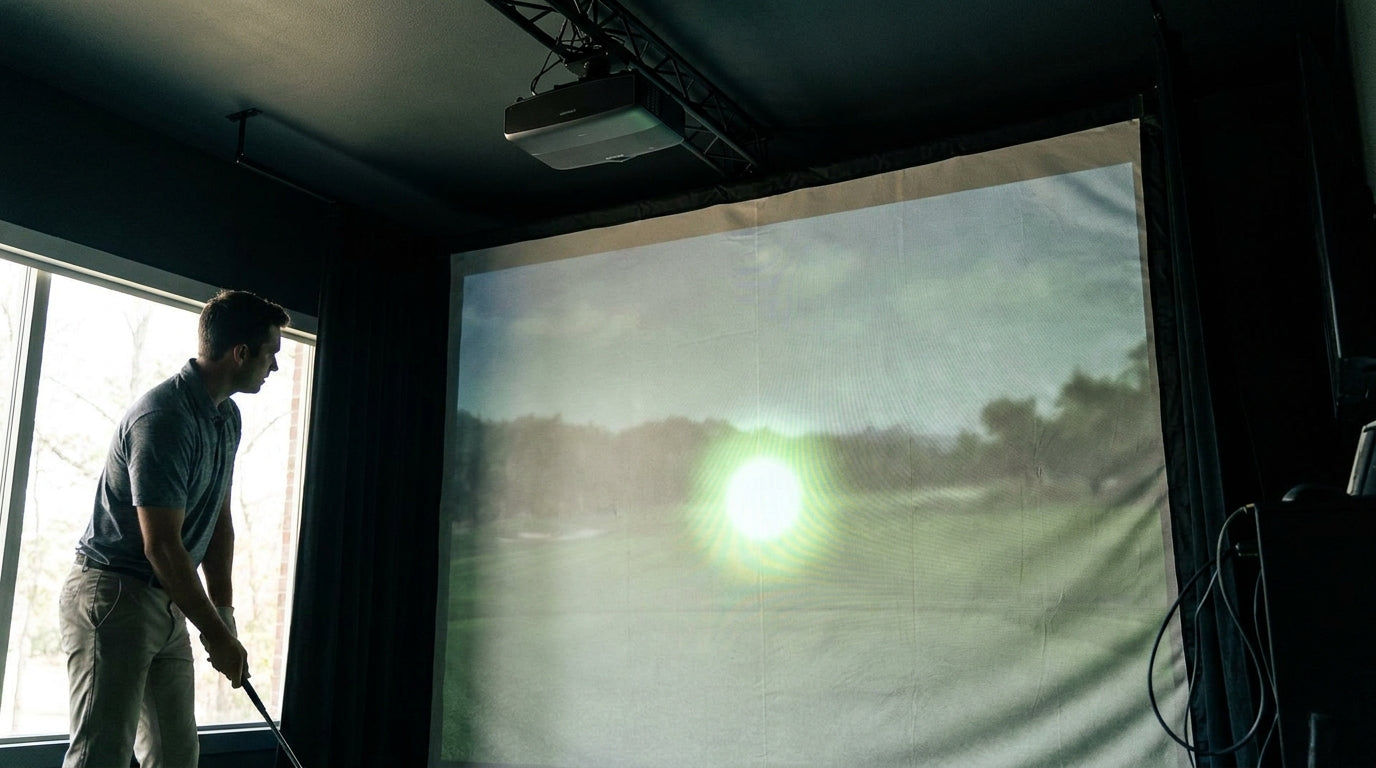
Here's a number that explains most golf sim image complaints in one shot: hot-spotting is basically invisible on a screen with a gain of 1.3 or lower, and it gets progressively worse the higher you climb (Source: ProjectorCentral / Projector Reviews). So if your screen has a bright, washed-out bubble sitting dead center while the corners look dim, the screen material is usually the first suspect — not the projector.
A hot spot is that glare bubble: a concentrated bright zone where the projector light reflects straight back at you instead of scattering evenly. It wrecks contrast, kills color in the middle, and makes the whole image look cheap. The good news? A proper golf simulator projector hot spot fix is mostly about geometry and gain, and both are things you control.
What Actually Causes a Hot Spot
Four things stack up to create that center glow, and usually it's a combination, not one villain.
Building one now? BenQ TH671ST short-throw projector — from $949.
High-gain screen material. Gain measures how much light a screen reflects back versus a reference white surface. High gain focuses light toward the viewer — great for a single dim spot, terrible for a bay where people stand and watch from the side.
Short throw geometry. When the projector sits close to the screen, light hits the center at a steep angle and bounces straight back. The shorter the throw on a reflective screen, the brighter that central glow gets.
Too many lumens. A projector that's overpowered for the room dumps more light than the screen can diffuse, and the excess piles up in the middle.
Off-axis seating. Hot spots look worst when you're standing to the side — exactly where golfers stand. A narrow viewing angle makes the bright center even more obvious from the hitting position.
The Screen Is Your Biggest Lever
Purpose-built sim screens don't fight hot spots — they design them out. The Elite Screens GolfSim Bay Series uses a 0.8 gain material paired with a 170° wide viewing angle specifically to keep brightness uniform off-axis (Source: Elite Screens, GolfSim Bay Series specs). Their portable ImpactWhite 350 follows the exact same recipe at 0.85 gain and 170° (Source: Elite Screens, ImpactWhite 350 specs).
That's not a coincidence. Sub-1.0 gain diffuses light evenly in every direction instead of beaming it back at one seat. You trade a little peak brightness for a picture that looks the same from the tee, the couch, and the corner.
If you want to go deeper on how gain and brightness work together, our breakdown of impact screen brightness vs gain is the companion piece to this one.
What the Data Says
The numbers draw a clean line between "fine" and "glowing."
Screens stay practically hot-spot-free up to about 1.8 gain; above that, center-to-corner uniformity and color start to break down (Source: Projector Reviews). Push into the 2.0–3.0 high-gain range and you actively introduce hot spots while narrowing the effective viewing angle (Source: ProjectorPicker / ZSM screen guides) — the worst possible trade for a room where people watch from the side.
Brightness matters too. The recommended projector output is 3,000–4,000 lumens for a fully dark room and 4,000–5,000 when ambient light is present, with 3,000–5,000 as the overall sweet spot (Source: Carl's Place / The Smart Home Hookup). Overshoot that on short-throw geometry and you amplify the glow.
Speaking of geometry: short-throw projectors (0.5–0.8 throw ratio) belong in rooms under ~15 ft, while normal-throw (1.3–1.7) suit deeper rooms — and an overly short throw on a high-gain screen produces a visible central glow (Source: Virtual-Golf-Simulator.com / GolfSimPlanet).
Recommended Projector Brightness by Golf Sim Room Lighting
Source: Carl's Place & The Smart Home Hookup golf simulator projector guides
Match Gain to Your Room, Not the Other Way Around
The fastest way to choose is to start from how much light you can control and how wide people sit. Here's the tiering the research supports.
Screen Gain Tiers vs. Hot-Spot Risk and Viewing Angle
Swipe to compare →
| Gain range | Hot-spot risk | Best use case |
|---|---|---|
| 0.8–1.0 (low / sim screens) | Minimal — uniform across screen | Golf bays, wide off-axis seating, controllable light |
| 1.1–1.3 (moderate) | Low — generally unnoticeable | Mixed-use rooms with some ambient light |
| 1.5–1.8 (medium-high) | Noticeable as throw shortens | Bright rooms, low-lumen projectors |
| 2.0–3.0 (high gain) | High — bright center, dim corners | Not recommended for golf simulators |
The Step-by-Step Fix
1. Check your screen gain first. If you're above 1.5 and seeing a glow, the material is the problem. Drop to a 0.8–1.0 sim-specific screen and most hot spots vanish on their own.
2. Get the throw right. Don't run an aggressively short throw on a reflective screen. Match your projector to room depth — our guide on short throw vs long throw walks through the exact distances.
3. Stop overshooting on lumens. Use the 3,000–5,000 range and lean toward the lower end in a dark room. Bright isn't better if it's piling up in the center.
4. Control the light, then re-check the angle. A wide-viewing-angle screen keeps the image even from the tee. If you're unsure what your spec really buys you, the viewing angle guide translates the numbers into real-room behavior.
The Short Version
Hot spots are a gain-and-geometry problem, not bad luck. Keep your screen at or below roughly 1.3 gain, match throw distance to room depth, and don't drown a dark room in lumens. Do those three things and the bright bubble disappears — the image stays evenly lit from corner to corner, no matter where you're standing.
Want a screen that's engineered to never hot-spot in the first place? Browse our low-gain, wide-angle golf simulator impact screens built specifically to keep your picture flat, bright, and even across the whole surface.


Not sure which simulator fits your room?
The two-minute Simulator Finder Quiz checks your space and budget against every system we carry.

Keep Reading
Related guides

golf simulatorGolf Simulator Enclosure Lighting Plan: Where to Mount Fixtures So They Never Wash Out Your Screen

golf simulatorGolf Simulator Basement Conversion Checklist: The 7 Steps to Run Before You Buy Anything

DIY golf simulatorGolf Simulator Garage Build Cost Breakdown: Every Line Item at Three Budget Tiers