
ambient light rejection screen
Golf Simulator Impact Screen Brightness vs Gain: The Spec Pairing That Makes or Breaks Your Image
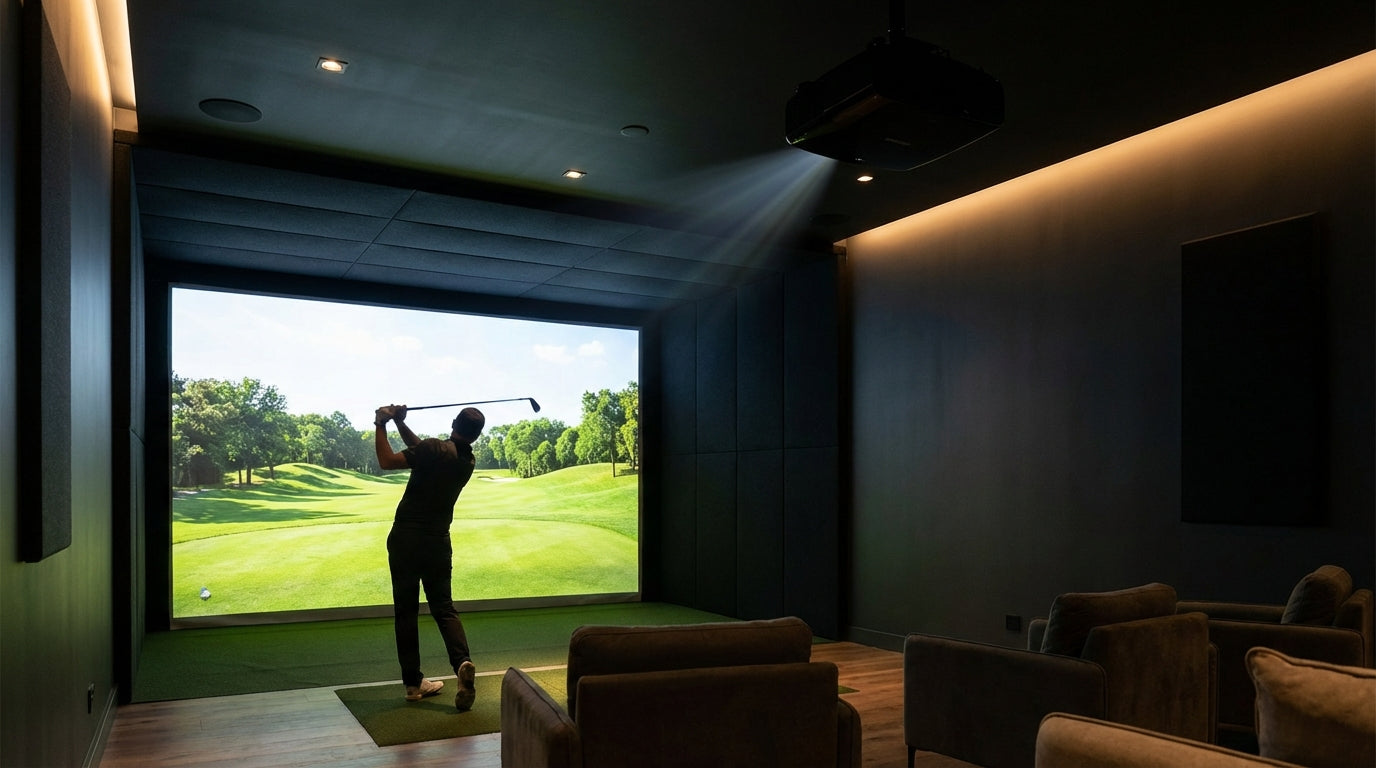
Here's a number that should change how you shop: a well-calibrated 2,500-lumen projector in a properly darkened room will outperform a 4,000-lumen unit in a garage with uncontrolled ambient light — every time. (Source: BenQ Golf Simulator Lighting Guide) Your projector can't produce true blacks, so ambient light turns shadows gray and washes out the image. No screen gain rating fixes that problem on its own.
Yet most golfers building a simulator focus almost entirely on lumens. They chase a bigger number, then wonder why the image still looks flat or uneven. The spec that gets skipped is screen gain — and more importantly, how golf simulator impact screen brightness vs gain interact as a matched pair.
Get this pairing wrong and you'll end up with hotspots, a washed-out picture, or way more projector than your room actually needs. Here's the framework to get it right.
What Screen Gain Actually Does
Gain measures how much light a screen reflects compared to a standard 1.0 reference panel. A 0.8 gain screen reflects less; a 1.3 gain screen reflects more. Simple enough — but there's a tradeoff hiding in that number.
Higher gain means a narrower viewing cone. High-gain Fresnel-style screens at 4.0+ gain compress the usable viewing angle down to as little as 45–50 degrees from center. (Source: ProjectorCentral) Step off-axis and the image dims sharply. In a simulator you're standing straight-on at the hitting position, so extreme off-axis viewing isn't the main concern — but viewing angle still shapes which materials work well.
Most impact screens sit between 0.8 and 1.1 gain for exactly this reason. The ImpactWhite 350 material used in Elite Screens' GolfSim DIY product carries a 0.85 gain rating paired with a 170° viewing angle. (Source: Elite Screens GolfSim DIY product page) Wide, even coverage wins over raw reflectivity in a simulator bay.
For a deeper look at how gain shapes what you actually see on screen, our impact screen viewing angle guide covers the tradeoffs in full detail.
What Projector Brightness Actually Depends On
Lumens matter — but the number you actually need is driven almost entirely by your room's ambient light, not your screen's gain rating. This is where most build decisions go sideways.
Dedicated dark rooms with blackout curtains and no windows perform well with projectors as low as 1,500–2,000 lumens. Bright garage setups with overhead lighting or exterior windows require a minimum of 3,000+ lumens regardless of which screen you buy. (Source: GolfersAuthority)
Industry guidelines put the target at 3,000–4,000 lumens for dedicated dark rooms and 4,000–5,000 lumens for rooms with ambient light — both assuming a 1.0 gain screen. (Source: BenQ / ShopIndoorGolf)
The core reason: projectors produce light but they cannot produce true blacks. Any ambient light fills in the dark areas of the image and kills contrast. A high-gain screen reflects more of the projector's output — but it also reflects more of the room's ambient light. Gain is not a workaround for a bright-room problem.
How Brightness and Gain Interact as a Matched Pair
Here's the framework that simplifies the whole decision:
Higher gain = fewer lumens required, but narrower tolerance for ambient light and a tighter viewing cone.
Lower gain = more lumens required, but better image uniformity and more forgiving conditions.
Adjust your screen's gain from 1.0 down to 0.8 and you'll need more lumens to compensate. Move up to 1.1–1.3 and you can get by with less projector. But as gain climbs above 1.3, hotspotting becomes a real problem — and above 1.5, the tradeoffs outweigh the lumen savings for almost any home simulator build.
The chart below shows minimum recommended lumens by screen gain level for a 10–12 ft impact screen in a light-controlled room:
Minimum Recommended Projector Lumens by Screen Gain Level (10–12 ft screen, light-controlled room)
Source: Industry estimates derived from ProjectorCentral, BenQ, GolfersAuthority guidelines
Notice the pattern: as gain goes up, the minimum lumen threshold drops — but the tradeoffs in viewing cone and hotspot risk rise sharply. More gain is not simply better.
The Hotspot Problem Nobody Warns You About
Hotspotting is where the center of the screen appears noticeably brighter than the edges. It becomes visible on screens above 1.3 gain and worsens significantly as gain increases beyond that threshold. (Source: ProjectorCentral)
In a dim simulator bay — the exact environment where high gain seems to make sense — a hotspot doesn't just look bad. It's fatiguing. Your eyes constantly adjust between the bright center and the darker edges during every single swing. After an hour, it genuinely degrades the experience.
This is why bumping gain to compensate for an underpowered projector is usually the wrong move. You solve one problem and create another. Room light control — not higher screen gain — is the right lever to pull first.
Matching Your Setup: Gain vs. Room Conditions
Impact Screen Gain vs. Room Conditions — Matchup Guide
Swipe to compare →
| Screen Gain | Ideal Room Condition | Common Mistake & Result |
|---|---|---|
| 0.8 (Gray / Low Gain) | Bright or ambient-light room (garage, basement with windows) | Used in a pitch-dark room → image appears unnecessarily dim; loses the brightness advantage of darkness |
| 1.0 (Neutral / Matte White) | Light-controlled room at any darkness level | Most forgiving — fewest tradeoffs; the right starting point for almost any build |
| 1.1–1.3 (Bright White) | Dark or fully light-controlled room | Used in an ambient-light room → hotspots appear AND ambient light still washes out the image |
| 1.5+ (High Gain) | Pitch-dark room, single fixed viewer position | Any ambient light or off-axis viewing → severe hotspotting and uneven brightness across the screen |
The most common mistake is trying to use a high-gain screen to compensate for a bright room. It doesn't work — ambient light degrades contrast regardless of screen reflectivity. If your room has a light problem, fix the room first. Blackout curtains cost less than a projector upgrade and address the actual cause.
If ambient light is your main challenge, our post on ambient light problems and how to fix them walks through the room-first approach in full.
By the Numbers
- Most impact screens carry a gain rating between 0.8 and 1.1 — the ImpactWhite 350 material is rated at 0.85 gain with a 170° viewing angle. (Source: Elite Screens GolfSim DIY product page)
- Hotspotting becomes visible above 1.3 gain and worsens significantly from there — exactly the range where some buyers think they're getting a brightness upgrade. (Source: ProjectorCentral)
- Dedicated dark rooms perform well at 1,500–2,000 lumens; bright garage setups require 3,000+ regardless of screen gain. (Source: GolfersAuthority)
- A 2,500-lumen projector in a properly darkened room outperforms a 4,000-lumen projector in an ambient-light room — the room condition, not the lumen count, is the primary driver. (Source: BenQ Golf Simulator Lighting Guide)
The Right Call for Most Builds
For the vast majority of home simulator builds, a 1.0 gain neutral white impact screen paired with 3,000–4,000 lumens and a properly darkened room is the winning formula. It's the most forgiving combination across room conditions, projector types, and viewer positions — and it sidesteps the hotspot problem entirely.
If you're running a dedicated dark room and want to stretch a lower-spec projector further, a 1.1 gain screen can reduce your lumen requirement meaningfully. Going above 1.3 introduces tradeoffs that aren't worth it for most builds.
Once your gain and lumens are matched, the next step is calibration — dialing in the actual projector settings after install. Our projector brightness settings guide covers exactly that, including the adjustments most people miss after everything is mounted.
Ready to find the right screen for your room and projector?
Browse Impact Screens →Not sure which simulator fits your room?
The two-minute Simulator Finder Quiz checks your space and budget against every system we carry.


Keep Reading
Related guides

golf simulatorGolf Impact Screen for a Two-Car Garage: How to Size, Center, and Hang One Across the Wide Bay

golf simulatorGolf Impact Screen Max Ball Speed Rating: What Your Screen Really Survives at 110+ MPH

corner setupGolf Simulator Impact Screen for a Corner Setup: How to Angle It Without Wrecking Your Bounce-Back