
dual projector blending
Golf Simulator Impact Screen Dual Projector Blending: When One Projector Stops Cutting It
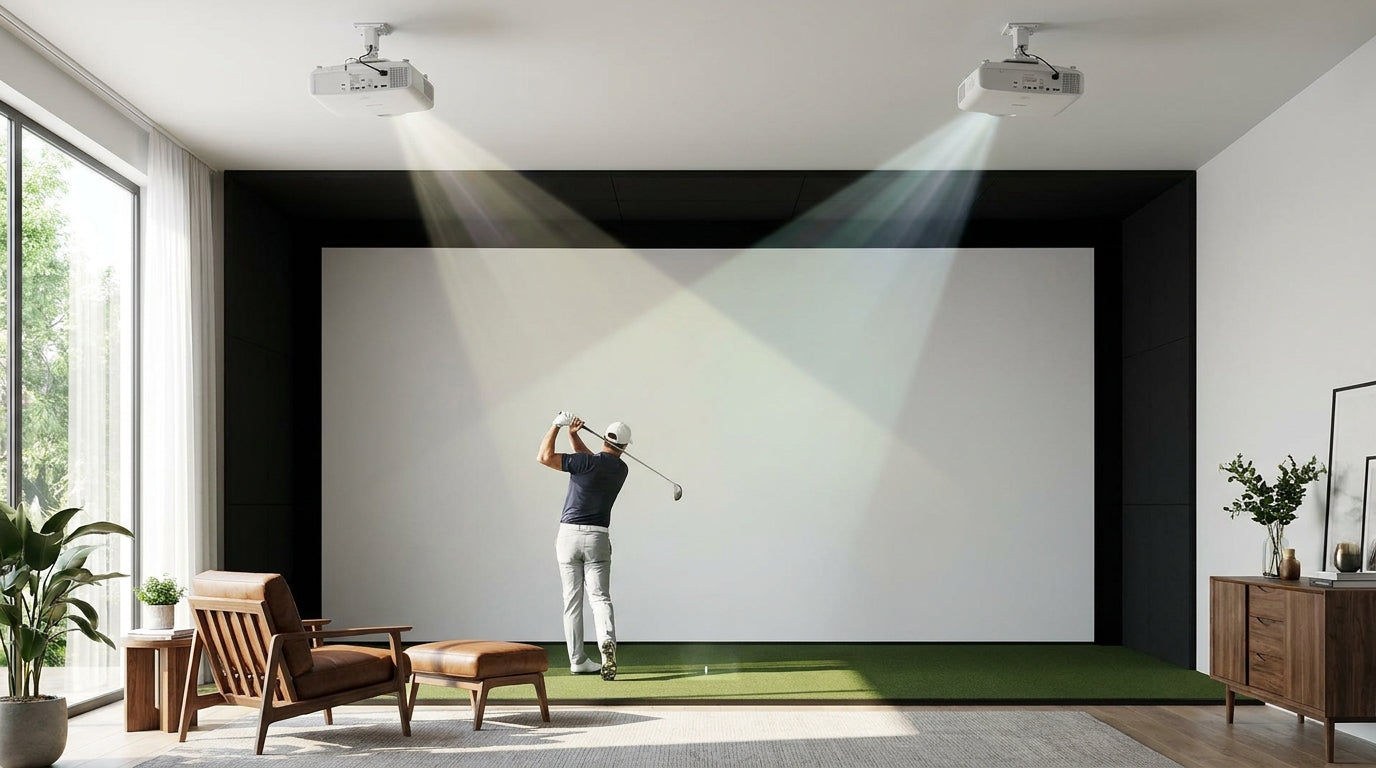
Here's a number that catches most builders off guard: a curved screen that fits inside a 180-inch-wide flat footprint actually projects like it's 230 inches wide (Source: Carl's Place, carlofet.com). That's the optical reality of wide and curved bays — the surface your projector has to light is bigger than the wall it bolts to.
And that's exactly where a single projector starts gasping for air. Go wide enough, and one beam can't deliver the brightness, resolution, or even-coverage you need. The fix is golf simulator impact screen dual projector blending — running two projectors onto one screen and stitching their images together. Done right, it's invisible. Done wrong, you get a glowing seam straight down the middle of your golf course.
When a Single Projector Isn't Enough
Most home sims run fine on one projector. The trouble starts when your screen gets ultra-wide or curved, because brightness demand doesn't climb in a straight line — it ramps.
Building one now? BenQ TH671ST short-throw projector — from $949.
A 3,000-lumen short-throw projector is plenty for a ~10-foot screen, but builders pushing past 12 feet wide are told to step up to laser units in the 4,000–5,000 lumen range (Source: PlayBetter & Carl's Place projector buying guides). And the scaling is brutal: a 16-foot screen needs roughly 30% more lumens than a 14-foot screen just to hold the same brightness (Source: TheaterCalc Golf Simulator Projector Calculator).
At some point you either buy one absurdly expensive projector, or you split the job between two. For wide and curved bays, two is usually the smarter money.
Recommended Projector Brightness by Impact Screen Width
Source: Derived from PlayBetter/Carl's Place lumen guidance and TheaterCalc's ~30% per-step scaling; values are industry estimates
How Dual-Projector Edge Blending Actually Works
You don't just shove two images side by side and hope. The two projectors are aimed so their pictures overlap by roughly 20%, and edge-blending software then corrects brightness and double-image variations inside that overlap zone (Source: Carl's Place, carlofet.com).
Think of it like two flashlights pointed at the same wall. Where the beams cross, you'd normally get a bright hot band. The blending software dims each projector's contribution across that band so the brightness ramps down on one side as it ramps up on the other — and the join disappears.
The hard constraint nobody mentions
Here's a rule you can't software your way around: edge blending only works when both projectors output the same resolution (Source: U.S. Patent 8,164,830, USPTO). Mix a 1080p unit with a 4K unit and the overlap zone will never resolve cleanly — you'll see the seam no matter how long you fiddle. Matched projectors aren't a luxury here. They're the entry fee.
Why Your Screen Decides Whether the Seam Shows
This is the part builders skip, and it's the part that bites them. You can align two projectors perfectly and still get a visible line down the middle — because of the screen, not the projectors.
The culprit is gain. Golf simulator screens commonly use a 1.0-gain material with a ~180° viewing angle specifically to deliver a uniform picture and avoid hot-spotting (Source: Shop Indoor Golf, shopindoorgolf.com). Gain uniformity is what stops a brighter center band. If your screen's gain drifts across its width, the two projector zones reflect light differently — and the blend zone lights up like a scar.
Material consistency matters just as much. Premium 3-layer warp-knit impact screen material runs about 4.5 mm thick and is rated for ball speeds up to 200 mph (Source: Elite Screens GolfSim / ImpactWhite material specs). Any variation in weave or surface finish across panels will catch dual-projector light and show as a seam. If you're already worried about lines, our seam visibility fix guide walks through the physical causes in detail.
Gain Choices for a Dual-Projector Build
For a single projector you might chase a higher-gain screen for a punchier image. For dual-projector blending, you usually want the opposite — flatter gain, wider uniformity, lower hot-spot risk. The table below lays out the trade-off.
Impact Screen Gain Options vs. Viewing Angle & Picture Uniformity
Swipe to compare →
| Screen Gain | Viewing Angle | Best For |
|---|---|---|
| 1.1 | ~160° | Brighter image, slightly narrower angle — higher hot-spot/seam risk |
| 1.0 | ~180° | Balanced brightness with wide, uniform picture (most common) |
| 0.9 | ~170° | Reduced hot-spotting, good for bright rooms |
| 0.85 | ~170° | Maximum uniformity, lowest hot-spot risk for wide/dual setups |
What the Data Says About Screen Quality
Cheap screens are the silent killer of dual-projector builds. Golf impact screens span from under $200 to over $5,000, with premium branded screens often running roughly 3x a basic screen (Source: Big Horn Golfer). That price gap isn't all marketing — it's largely material and gain consistency, the exact properties that determine whether your blend zone vanishes or glows.
Pair that with the brightness math from earlier — a 16-foot screen needing ~30% more lumens than a 14-footer (Source: TheaterCalc) — and the picture gets clear. The wider you go, the more both your projectors and your screen have to be matched and consistent. A budget screen with uneven gain will undo two perfectly aligned 5,000-lumen lasers.
If you're still weighing the brightness-and-gain pairing on a single-projector setup first, our breakdown of brightness vs. gain is the right starting point — and if center hot-spotting is your current headache, the projector hot-spot fix covers the single-beam version of the same problem.
Bottom Line
Dual-projector blending isn't exotic — it's just what wide and curved bays demand once a single beam runs out of brightness and reach. Get three things right and the seam disappears: matched projectors at identical resolution, a clean ~20% overlap dialed in with blending software, and a screen with consistent gain and material across its full width.
Skimp on that last one and you'll chase a phantom seam forever. Building an ultra-wide bay and want a screen with the gain uniformity to blend cleanly? Start with our impact screen collection — built for even brightness edge to edge, exactly what a two-projector setup needs.


Not sure which simulator fits your room?
The two-minute Simulator Finder Quiz checks your space and budget against every system we carry.

Keep Reading
Related guides

golf simulatorGolf Simulator Enclosure Lighting Plan: Where to Mount Fixtures So They Never Wash Out Your Screen

golf simulatorGolf Simulator Basement Conversion Checklist: The 7 Steps to Run Before You Buy Anything

DIY golf simulatorGolf Simulator Garage Build Cost Breakdown: Every Line Item at Three Budget Tiers