
golf simulator
Golf Simulator Impact Screen Brightness Settings: How to Actually Dial In Your Projector After Install
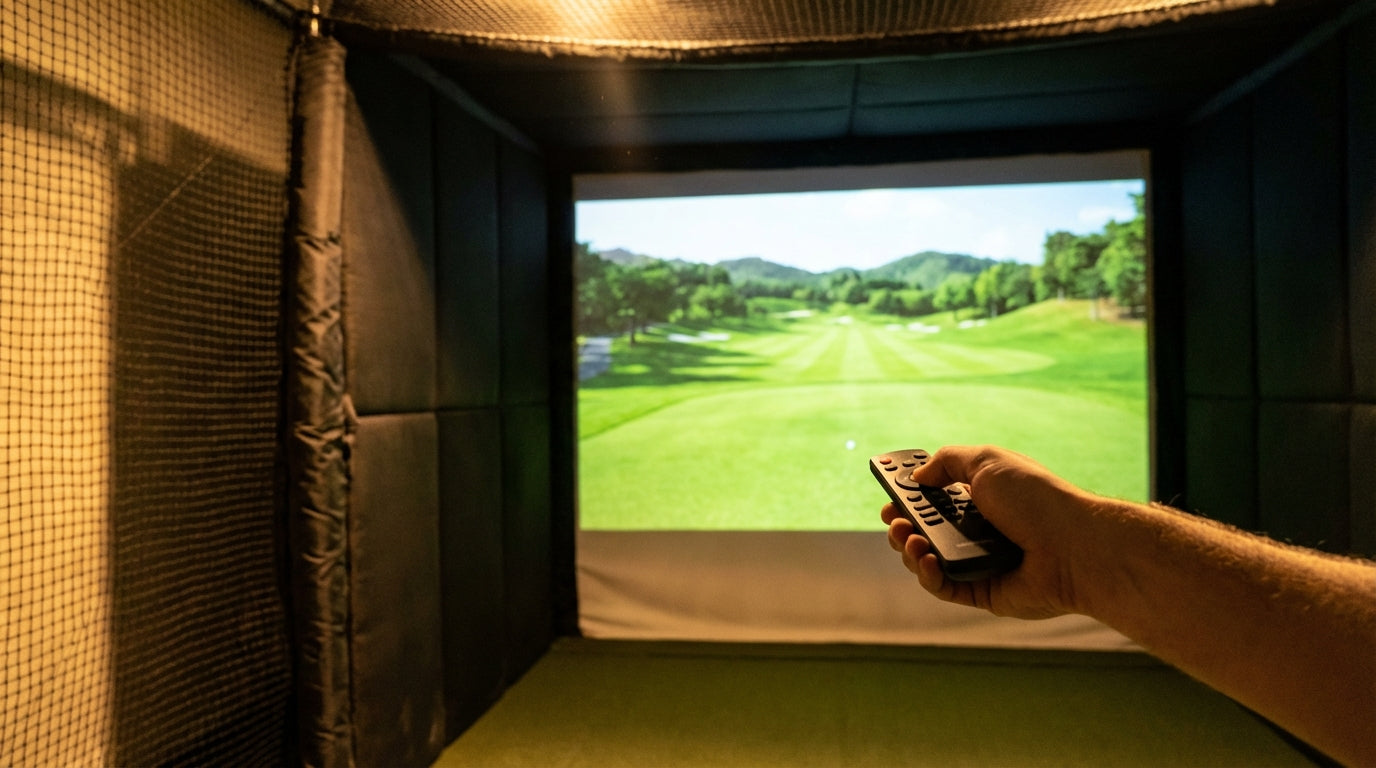
Here's something most sim builders discover too late: the projector that looked amazing in the showroom can look washed out and gray the moment you fire it up in your garage. It's not a defective unit. It's the interaction between your room lighting, your screen's gain rating, and factory default settings that were calibrated for a demo floor — not your hitting bay.
Most brightness guides tell you what lumens to buy. This one tells you what to do after you've already bought it. Calibrating golf simulator impact screen brightness settings post-install is a different task — and the variables you're working with are specific to your room, your screen material, and how those two things interact with the projector you already own.
Let's get into it.
Why Calibration Is a Post-Install Task, Not a Pre-Purchase One
Pre-purchase lumen calculators assume a generic room. Your room isn't generic. Wall color, enclosure material, overhead light placement, and — most critically — the gain rating of your specific impact screen all shift the effective output of your projector before a single setting is touched.
Screen gain is a multiplier. A standard white impact screen has a gain of 1.0, meaning it reflects all projected light back to the viewer. A premium gray screen carries a gain around 0.6 — reflecting only 60% of that same light back. (Source: AirMeshSupply.com) Same projector. Same brightness setting. Dramatically different perceived output.
You cannot know your actual calibration target until the screen is hung, the room is in its normal playing state, and the full system is running together. That's the baseline you calibrate from.
Fix Your Room Before You Touch the Projector Menu
Adjusting brightness settings in an uncontrolled light environment is like aiming a hose at a moving target. You'll land somewhere, but you won't know if it's actually right.
Run through this before opening your projector's on-screen menu:
- Block windows with blackout curtains or foam board inserts during play sessions
- Redirect overhead lights away from the screen surface — aim them at the hitting mat, not the image
- Check enclosure edges for light bleed — even small gaps kill contrast in dark areas of the image
- Turn off any lights that sit directly in the projector's throw path
If you're dealing with a persistent ambient light problem, fixing the room is almost always more cost-effective than buying a brighter projector. A proper blackout solution costs under $100. The next lumen tier up in projectors typically runs $400–700 more. Do the math once, then spend accordingly.
Your Screen Material Sets the Lumen Floor
After your room is dialed in, your screen's gain rating defines the minimum brightness threshold your projector needs to hit for a usable image. This is the variable most builders underestimate when they start fiddling with settings.
Gray impact screens absorb approximately 40% more ambient light than white screens, producing deeper blacks and better contrast in rooms with any overhead lighting. (Source: FriendlyGolfer.com / Carl's Place) That absorption is exactly what makes a gray screen look so much crisper than a white one in a mixed-light room — but it means you need more raw lumens from the projector to compensate for the lower reflectivity.
The ImpactWhite® 350 screen sits at a gain of 0.85 with a 170° viewing angle — one of the widest-angle impact screens rated for golf simulator use. (Source: PrecisionSportsSim.com) That wide angle also means less brightness drop-off for anyone watching from the side of the bay. For projector pairing purposes and understanding how resolution interacts with lumens, screen gain is the first number you need before any projector spec comparison makes sense.
Impact Screen Material Tiers: Brightness & Projector Requirements
Swipe to compare →
| Screen Type | Gain Rating | Min. Projector Lumens | Best Room Condition |
|---|---|---|---|
| Standard White | 1.0 | 3,000 lm | Fully dark, no windows |
| ImpactWhite® 350 (white) | 0.85 | 3,500 lm | Dark room, minimal ambient light |
| Premium Gray / Grey Mesh | 0.6 | 4,500 lm | Mixed light, garage, overhead lighting on |
| DIY / Budget Poly White | ~1.0–1.1 | 2,500 lm | Dark room only, budget build |
By the Numbers: What the Data Actually Says
Before you start sliding anything in your projector menu, internalize these benchmarks. They're the calibration targets your settings need to support — not just the specs you used to pick the projector.
- Commercial golf simulator bays require 5,000–6,000 lumens. Ambient-light home rooms need 4,000–5,000. Fully darkened dedicated rooms can perform well at 3,000–4,000 lumens. (Source: ProjectorCentral.com)
- Top-selling golf simulator projectors cluster in the 5,000–6,000 lumen range — the market's consensus sweet spot between performance, price, and versatility for mixed-light environments. (Source: GreenProGolfSimulators.com)
- A 2,500-lumen projector can deliver a high-quality image in a completely dark room. Any ambient light intrusion pushes the minimum to 3,000+ lumens. (Source: BenQ US) That 500-lumen gap shows why managing light — not upgrading hardware — is often the highest-leverage move available.
Recommended Projector Lumens by Room Lighting Condition
Source: ProjectorCentral.com, GreenProGolfSimulators.com, BenQ US Golf Simulator Lighting Guide
How to Actually Dial In Your Projector Settings
With your room controlled and your screen's gain understood, you have a real baseline to work from. The following adjustments take about 20 minutes and make a visible difference in image quality during play.
Brightness vs. Contrast: They're Not the Same Control
Brightness sets the black floor. If it's too low, shadow detail crushes into pure black. Too high, and dark areas look milky gray. For golf simulator use, you want fairway shadows and tree lines to look genuinely dark — not crushed to nothing, but not gray either. Start at the factory default and nudge down by 5–10 points if blacks look washed.
Contrast sets the white ceiling. Golf courses benefit from punchy whites — sky gradients, sand traps, and sun-hit fairways all render better with contrast pushed slightly above default. Raise it until whites look clean, then stop before bright areas start to bloom into adjacent regions on screen.
Color Mode and Temperature
Avoid dynamic or vivid presets. They're tuned for retail showrooms under fluorescent lights, not golf courses. Use cinema, natural, or a custom mode with color temperature set around 6500K. Greens and fairways render with more accuracy in this range, and it avoids the oversaturated, artificial look that vivid modes produce on grass textures.
Sharpness, Keystone, and Geometric Correction
Keep digital keystone correction as low as possible — ideally zero. Digital correction softens the projected image noticeably, especially on fine text and ball-flight overlays. Adjust your projector's physical position instead. The ceiling mount vs. floor stand guide covers positioning adjustments that eliminate the need for digital correction entirely.
Set sharpness to mid-range. Over-sharpening creates visible edge artifacts — halos around course features and distracting outlines on the ball path. Under-sharpening blurs the interface text in your simulator software. Mid-range is usually the factory default, but it's worth verifying after you've adjusted the other settings.
Validate Your Settings With These Three Quick Tests
Don't judge your calibration on the menu screen or a test image. Judge it in actual simulator software with a real course loaded. Run through these three checks:
- Fairway gradient test: Look at a long fairway view. Green shading from foreground to background should have visible gradient, not flatten to a single tone.
- Sky check: Find a hole with an open sky view. Blue sky near the horizon should show a gradual gradient toward lighter tones. A flat uniform blue means contrast is too low.
- Shadow definition test: Find a hole with trees casting shadows across the fairway. Shadow edges should have some definition. If they blend seamlessly into the grass, brightness is set too high.
If you've recently upgraded your screen or are considering one, the decisions you made during the original build — including projector throw distance and placement — all interact with brightness output. The projector throw distance calculator is worth revisiting if you've changed screen size or position, since throw distance directly affects how much light reaches the screen surface.
The Bottom Line
The gap between a mediocre sim image and a genuinely good one usually isn't a $600 projector upgrade. It's a $40 blackout curtain, 20 minutes with the on-screen menu, and actually understanding what your screen's gain rating is doing to your output.
Get the room controlled first. Match your lumen floor to your screen tier. Then calibrate from a known baseline — not just drag sliders until something looks okay. Your simulator will look noticeably better, and you'll stop second-guessing whether you need a brighter projector.
If you're shopping for a new screen and want to take the guesswork out of pairing it to your projector from day one, browse the Carl's Place impact screen collection. Each tier is designed for specific room conditions — so you can match the material to your space before the first image hits the screen.
Not sure which simulator fits your room?
The two-minute Simulator Finder Quiz checks your space and budget against every system we carry.


Keep Reading
Related guides

golf simulatorGolf Impact Screen for a Two-Car Garage: How to Size, Center, and Hang One Across the Wide Bay

golf simulatorGolf Impact Screen Max Ball Speed Rating: What Your Screen Really Survives at 110+ MPH

corner setupGolf Simulator Impact Screen for a Corner Setup: How to Angle It Without Wrecking Your Bounce-Back