
black backing
Golf Simulator Impact Screen Black Backing: How a Blackout Layer Kills Light Bleed
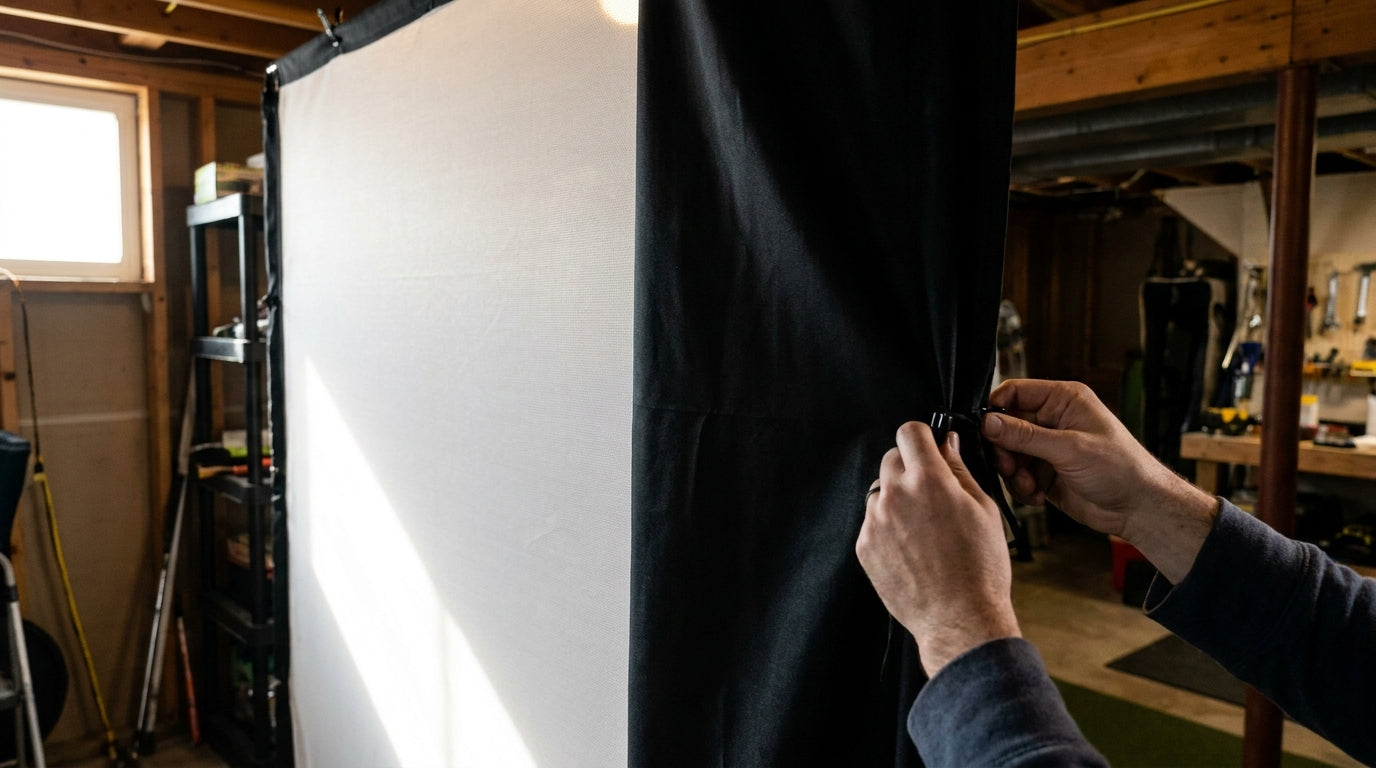
Here's the part nobody tells you when you buy your first impact screen: a plain white open-weave screen can carry a gain rating around 1.0, which sounds great until you realize that brightness comes at the cost of contrast. (Source: Home Performance Lab, Best Golf Simulator Impact Screen, 2026) All that light blasts straight through the weave and bounces off the wall behind it, washing your image out into a gray, ghosty mess.
The fix is almost embarrassingly simple. A golf simulator impact screen black backing layer sits behind your white screen, absorbs the light that punches through, and hands you back the deep blacks and punchy contrast you thought you needed a $1,000 screen to get.
Let's break down exactly how it works, what the data says, and whether your current screen needs a backer or a full upgrade.
What a Black Backing Layer Actually Does
Projectors don't make black. They make "less light." The darkest your image can ever look is however dark your screen surface is when the projector is throwing white everywhere else around it.
With a single open-weave screen, projected light passes through the gaps in the fabric, hits the wall or enclosure behind it, and reflects back through the screen toward you. That returning light is what crushes your contrast and creates the faint "double image" you sometimes see on the wall.
A blackout backing layer intercepts that light. Instead of bouncing back, it gets absorbed by the dark fabric. Your whites stay bright, but your blacks finally get to be black.
It's the same trick gray screens use
This isn't some fringe hack. Gray impact screens lean on the exact same principle by baking darkness into the material itself, which is why they read as higher-contrast even in a lit room. If you want the deeper background on how that brightness-versus-darkness tradeoff plays out, our breakdown of impact screen brightness vs. gain walks through the spec pairing in detail.
What the Data Says
Numbers make this decision a lot easier, so here are the ones that matter.
Gray impact screens carry a gain rating of roughly 0.6 versus 1.0 for white screens, absorbing about 40% more ambient light to boost perceived contrast. (Source: Home Performance Lab, Best Golf Simulator Impact Screen, 2026) A black backer chases that same contrast win without forcing you to swap your whole surface.
Denser construction does more than improve the picture, too. Multi-layer screen construction produces a 42% reduction in impact noise compared to single-layer polyester screens in standardized acoustic testing. (Source: Elite Screens, Ultimate Guide to Choosing the Right Impact Screen) Quieter and sharper tend to travel together.
If you'd rather add a layer than replace everything, dedicated blackout backing screens run from about $599.98 for a 7'7"x7'7" up to $939.98 for a 10'x17'6" model, attaching to the rear of the white screen to minimize image bleed-through. (Source: Shop Indoor Golf, Golf Simulator Enclosure Blackout Screen pricing)
And for the optics nerds: premium ImpactWhite-style golf fabric is rated around 0.85 gain with a 170 viewing angle, proving that controlled, close-to-white materials deliberately trade a little brightness for cleaner contrast. (Source: Canvas ETC / Elite Screens material specs)
Impact Screen Price by Material Tier
Source: Home Performance Lab, Best Golf Simulator Impact Screen (2026)
Does Your Screen Even Need a Backer?
Not every setup benefits equally. The thinner and brighter your screen, the more a black backing layer transforms the picture. The denser your screen already is, the less it matters.
Here's the quick reference for matching your screen type to the right move.
Screen Tier vs. Light/Contrast Performance and Whether a Backer Helps
Swipe to compare →
| Screen type | Layers / gain | Bleed & contrast behavior | Recommended action |
|---|---|---|---|
| Entry open-weave (white) | 1 layer, ~1.0 gain | Heavy light bleed-through, ghost image on wall behind | Add black backing layer ($600+) or upgrade |
| Mid-tier silicone-reinforced | 1 layer reinforced, ~0.85 gain | Moderate bleed; contrast improves with backer | Add blackout backer for best contrast |
| Gray dual-layer | 2 layers, ~0.6 gain | Low bleed, strong native contrast | Backer optional; already dense |
| Premium 3-layer poly spacer | 3 layers, 0.6-0.85 gain | Minimal bleed, 4K-capable contrast | No backer needed |
Backer vs. Full Upgrade: The Cost Math
This is where most builders overthink it. A dedicated blackout backer starts around $600, while a premium 3-layer poly-spacer screen runs $460 to $1,060+ versus $180 to $400 for entry-level single open-weave screens. (Source: Home Performance Lab, Best Golf Simulator Impact Screen, 2026)
So the real question is whether your current screen is worth keeping. If you've got a decent silicone-reinforced screen with plenty of life left, bolting a backer onto it is the smart, cheap move.
If your screen is already on its way out, spend the money on the denser screen instead. A quality multi-layer screen lasts about 3 to 5 years under regular use, while budget single-layer screens often need replacement after 1 to 2 years, and as little as 3 to 6 months under daily driver-speed use. (Source: RSGolf / Home Performance Lab impact screen guides) No point backing a screen you'll be tossing by next season.
If you're genuinely unsure where your screen sits on that timeline, our guide on how to know when it's time to upgrade your screen gives you the wear signals to watch for.
How to Tell If Light Bleed Is Wrecking Your Image
You don't need a light meter. Throw a dark scene or a course at dusk onto your screen, kill the room lights, and walk behind the screen.
If you can clearly see the projected image glowing on the wall behind your screen, that's light you're losing. That same light is bouncing back and graying out your blacks from the front.
Another tell: your sky looks great but your shadows, tree lines, and rough all blend into a muddy soup. That's a contrast problem, and ambient light rejection from a backer is exactly what fixes it.
Don't blame the screen for projector sins
Before you spend a dime, make sure your projector settings aren't the actual culprit, because a blown-out brightness setting fakes the same washed-out look. Run through your contrast and lamp settings first, and our projector brightness dial-in guide covers the exact tweaks. Fix software before you buy hardware.
The Bottom Line
If you're staring at a washed-out, low-contrast image and you own a white or lightly reinforced single-layer screen, a black backing layer is the highest-return upgrade you can make. It costs a fraction of a new premium screen and goes straight after the root cause: light punching through and bouncing back.
Got a dense gray or 3-layer screen already? You're set. Save your money.
Ready to fix the light bleed for good? Browse our impact screens and blackout backing options and build a screen system that actually shows you the picture your projector is trying to deliver.
Not sure which simulator fits your room?
The two-minute Simulator Finder Quiz checks your space and budget against every system we carry.


Keep Reading
Related guides

golf simulatorGolf Impact Screen for a Two-Car Garage: How to Size, Center, and Hang One Across the Wide Bay

golf simulatorGolf Impact Screen Max Ball Speed Rating: What Your Screen Really Survives at 110+ MPH

corner setupGolf Simulator Impact Screen for a Corner Setup: How to Angle It Without Wrecking Your Bounce-Back