
golf simulator
Golf Impact Screen Ghosting and Double Image: What Actually Causes It (and How to Fix It)
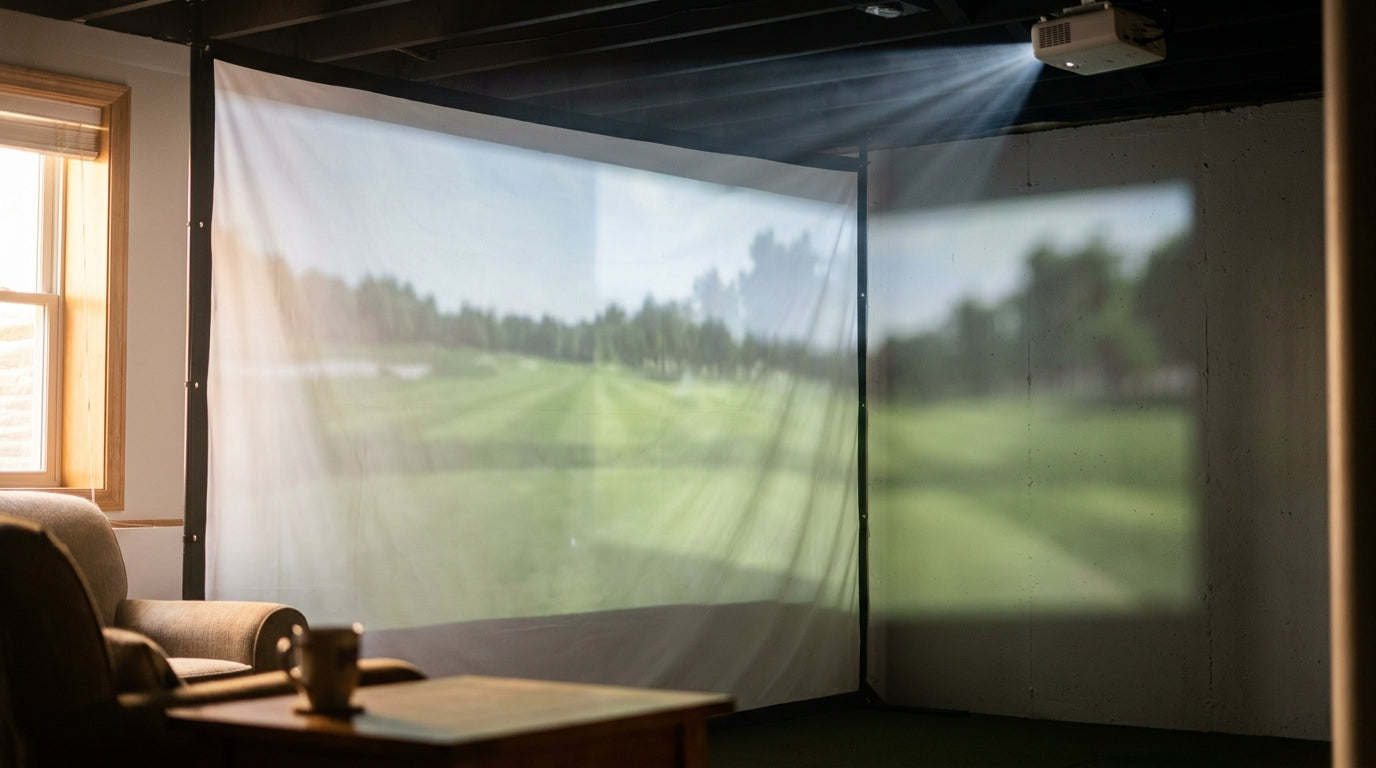
Here's the uncomfortable truth most sim builders find out the hard way: when your projected image looks doubled, smeared, or ghosted, your projector usually isn't the villain. Your screen is. A 2mm single-layer polyester screen handles moderate swing speeds fine, but the moment projector light hits an open weave, some of it passes straight through and lands on the wall behind — creating a faint second image (Source: Canvas ETC — Golf Impact Screen Materials Guide). You squint, you re-focus the projector, you fiddle with settings for an hour. None of it works, because the light is literally going through your screen.
So before you blame the lens, let's diagnose what golf impact screen ghosting and double image actually come from — and whether the fix lives in your screen or your projector.
What Ghosting and Double Image Actually Mean
"Ghosting" gets used for two very different problems, and that's why people fix the wrong thing.
Building one now? Carl’s Place Preferred impact screen — from $299.
The first is light bleed: your screen is too thin or too loosely woven, so projector light punches through and paints a faint copy of the image on the wall behind it. Stand to the side and you'll literally see a second, dimmer picture floating behind the screen.
The second is a geometric double image: edges look soft and doubled because the projector is mounted off-axis and you've cranked up digital keystone to square the picture back up. That's a projector problem, not a screen problem. Telling them apart is the whole game.
The Screen-Side Cause: Weave, Layers, and Denier
If you see image on the wall behind the screen, this is you. The structural fix is more material between the light and the wall.
A 2mm single-layer screen is fine for casual swing speeds, but a 3mm multi-layered screen is recommended for higher-velocity impacts — and that extra thickness is exactly what blocks the light bleed that ghosts your image (Source: Canvas ETC — Golf Impact Screen Materials Guide). Layers do double duty: they stop balls and they stop photons.
Denier Is the Spec to Watch
Fabric weave is rated in denier (D). A 600D polyester is described as relatively thick and durable, while 900D indicates a heavier-duty, tighter weave that better resists light pass-through (Source: Canvas ETC — Materials Guide). Lower denier and a looser weave mean more "openness," and openness is what lets light leak through to create that washed-out, doubled look. If you want to go deeper on this, our screen grain direction guide breaks down how weave orientation affects image sharpness.
The other quiet culprit is a tired screen. A budget single-layer screen at regular use is often a replacement purchase within a single season, while premium three-layer screens are documented at 5-plus year lifespans even under multi-weekly use at 150–165 mph driver speeds (Source: Home Performance Lab, citing Carl's Place Premium). A worn screen loses tension, the weave scatters, and ghosting creeps back in. A blackout backing layer is one of the most reliable cures — our breakdown on black backing and light bleed covers exactly why.
By the Numbers
The price tier of a screen correlates almost directly with how many layers you get — and layer count is the single biggest factor in whether light bleeds through and ghosts your picture.
A quality golf impact screen runs $400 to $2,500 depending on size and material thickness, while premium multi-layer screens range from $1,500 to over $5,000 (Source: Home Performance Lab / Big Horn Golfer, 2026). That spread isn't arbitrary — you're paying for the layers that kill light bleed.
Golf Impact Screen Price by Material Tier (USD)
Source: Home Performance Lab & Big Horn Golfer (2026) — midpoint of cited ranges
The Projector-Side Cause: Geometry and Keystone
Now the other kind of doubling. If there's no image bleeding onto the back wall but your edges still look soft and twinned, your projector geometry is the problem.
Projectors must sit at least 8 feet from the screen — mostly a ricochet-safety rule — but mounting off-center at that distance is what skews the picture into a trapezoid and forces you to reach for keystone correction (Source: Home Performance Lab — Projector Placement Guide, 2026). And digital keystone is where ghosting is born on the projector side.
Digital keystone correction visibly reduces effective resolution and brightness and can add input lag, with clarity loss increasing the more correction you apply (Source: My Golf Simulator — Keystone Correction guide). Push it hard enough and the projector is essentially resampling the image, which softens and doubles your edges. The fix order is simple: physical position first, optical lens shift second, digital keystone last.
Diagnose It in 30 Seconds
Walk to the side of your screen with the projector running. See a faint picture on the wall behind it? That's screen-side light bleed — add layers or denier. See a clean back wall but soft, doubled edges on the screen face? That's projector geometry — reposition before you touch keystone.
Diagnosing Ghosting: Screen-Side vs. Projector-Side Causes
Swipe to compare →
| Symptom / Cause | Likely Fix | Tier or Spec Indicator |
|---|---|---|
| Faint image visible on wall behind screen (light bleed) | Screen upgrade — add layers / higher denier | Move from 2mm/600D single-layer to 3mm/900D multi-layer |
| Blurry patches or shimmer after ball impact (wrinkle scatter) | Re-tension screen evenly; replace if worn | Single-layer worn within ~1 season vs 5+ yr multi-layer |
| Trapezoid / skewed image from off-center mount | Projector tweak — physical reposition first | Maintain 8 ft min throw; correct geometry before keystone |
| Soft, doubled edges after heavy keystone use | Reduce digital keystone, use lens shift | Keystone lowers resolution/brightness, adds lag |
The Wrinkle-Scatter Wildcard
There's a third gremlin worth naming: a sagging screen. When tension goes, the surface ripples, and every ripple scatters light into blurry, shimmery patches that read like ghosting after impact. This is usually a worn or under-tensioned single-layer screen reintroducing wrinkle-scatter and bleed at the same time. If your image got soft over a season rather than overnight, start with tension — our tensioning system guide walks through getting it even.
The Bottom Line
Golf impact screen ghosting and double image almost always trace back to one of three things: light bleeding through a thin or open weave, geometry forcing you into too much keystone, or a sagging screen scattering light. Check the back wall first — it tells you in seconds whether you're buying material or moving a mount.
If the answer is material, don't keep patching a thin single-layer screen. A multi-layer screen with a blackout backing fixes the bleed at the source and lasts years longer. Browse our impact screens and put a real surface between your projector and that ghost on the wall.


Not sure which simulator fits your room?
The two-minute Simulator Finder Quiz checks your space and budget against every system we carry.

Keep Reading
Related guides

golf simulatorGolf Simulator Hitting Mat Sizing Guide: Exact Dimensions for 10x12, 12x15, and 16x18 Rooms

golf simulatorGolf Simulator Enclosure Cost to Build: Every Line Item, DIY vs Pre-Made (2026 Numbers)

golf simulatorGolf Simulator Room Electrical Plan: Where Every Outlet Goes Before the Frame Closes Up