
cable management and organization tips
Golf Simulator Cable Management and Organization Tips: How to Tame the Wire Chaos in Your Bay
You spent months planning the perfect simulator bay. You agonized over screen size, ceiling height, projector throw distance. Then you plugged everything in — and your dream setup turned into a spaghetti factory.
Cable chaos is one of the most overlooked parts of a home golf simulator build. Nobody warns you about the 25-foot HDMI run from your PC to the ceiling projector, the USB cable trailing across the hitting mat to your launch monitor, or the power strip sitting in the middle of the floor because you forgot to plan outlets.
This guide covers practical golf simulator cable management and organization tips for every wire in your bay — signal cables, power runs, launch monitor connections, and how to hide them all without tearing apart your walls.
Building one now? Carl’s Place Preferred impact screen — from $299.
The Three Cable Runs That Define Every Simulator Bay
Before you buy a single zip tie, understand that every simulator bay has three distinct cable runs that each need their own plan.
1. PC to Projector (Signal + Power)
This is usually the longest and most frustrating run. Your computer lives near the hitting position. Your projector lives at the ceiling or rear of the bay. That gap is typically 15–25 feet depending on your room — and standard HDMI cables start losing signal quality around 15 feet at 1080p, and 10 feet at 4K.
2. Launch Monitor to PC (USB or Wireless)
Side-mounted launch monitors like the Skytrak, Mevo+, or Uneekor units need either a USB cable run or a WiFi/Bluetooth connection. Wired connections are more reliable, but they require careful routing so cables never cross your hitting area. That last part is non-negotiable.
3. Power Runs to Everything
Your projector, PC, launch monitor charger, and bay lighting all need power. Planning these runs before you build is dramatically easier than fishing cables through walls after the fact. If you haven't read the surge protection guide for simulator rooms, do that first — one power spike can take out your entire setup.
Route First, Zip-Tie Second
The biggest mistake simulator builders make: running cables wherever they fit, then trying to tidy them up later. You end up with a mess that looks organized until you trace any single cable and realize it crosses three others for no good reason.
The right approach: sketch your cable routes on paper before you buy anything. Know exactly where your PC sits, where the projector mounts, and where the launch monitor goes. Measure those distances and add 15–20% for corners, routing curves, and future flexibility.
Use Your Frame Tubing as a Cable Highway
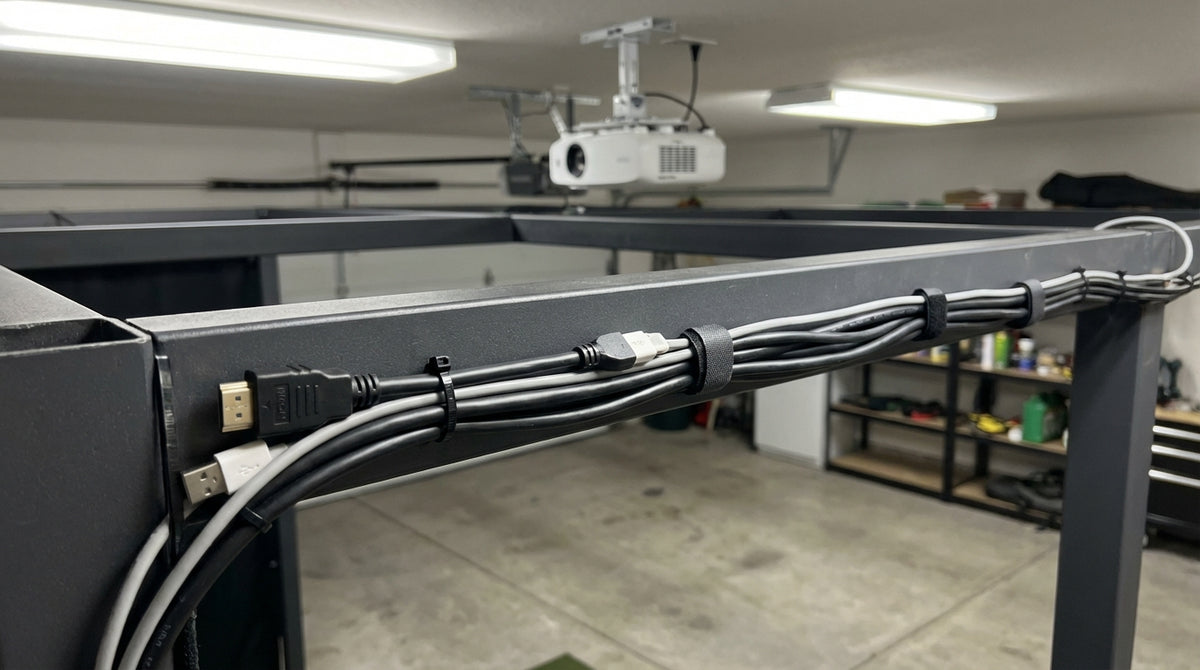
If you built or bought an impact screen frame made from PVC, EMT conduit, or square steel tubing, that structure is your best cable management tool. Adhesive cable clips or saddle clamps attach directly to the frame uprights and top rail. Run your HDMI, USB, and power cables along the frame edges — secured every 12–18 inches with zip ties or reusable velcro straps — and they disappear into the structure. Off the floor, out of your sight lines, away from your swing path.
Wall Raceways: Underrated and Cheap
For permanent builds, paintable PVC cable raceways are a game-changer. They mount to drywall with adhesive strips or screws and snap open to accept cables. A 10-foot raceway kit runs about $15 at any hardware store and looks completely clean when painted to match the wall. Run your main trunk lines — power and signal together — from the source to within a few feet of the projector mount, then branch from there.
The HDMI Run to Your Projector (Where Most Builds Go Wrong)
This is where builders get burned. You grab a 25-foot HDMI cable, route it to the ceiling projector, and wonder why the image looks soft or drops connection intermittently. The cable is the problem.
Passive vs. Active vs. Over-Cat6
Standard passive HDMI cables are reliable up to about 15 feet at 1080p. Beyond that, you need one of these three approaches:
- Active HDMI cables — a built-in signal booster handles runs up to 50 feet. They're directional (source end and display end are labeled), so install them correctly.
- HDMI over Cat6 extenders — a transmitter at the PC and a receiver at the projector, connected by a single Cat6 cable you can fish through walls or ceiling cavities. Handles 100+ feet with zero quality loss and costs about $30–50 for a decent kit.
- Wireless HDMI adapters — convenient but adds latency, which is a real problem for simulator software that depends on fast display refresh.
For ceiling-mounted projectors, HDMI over Cat6 is the cleanest solution by a wide margin. Whether you're ceiling-mounting or using a floor stand affects this decision significantly — the projector mount guide covers that tradeoff in detail.
Label Both Ends. Always.
This sounds obvious until you're behind a tangle of cables at 9pm trying to figure out which HDMI goes where. Label maker, masking tape with a Sharpie, whatever you have — label both ends of every cable before you route it. Future you will be grateful.
Launch Monitor Wiring: Keep the Hitting Area Clean
A USB cable flopping across your hitting mat is both a safety hazard and a distraction. Here's how to eliminate it.
Side-Mounted Units
For side-mounted launch monitors (Uneekor QED, Skytrak, etc.), route the USB cable along the baseboard or wall behind the hitting position, then loop it under or around the back edge of the mat before connecting to your PC. Adhesive cable clips on the wall keep it taut and completely off the floor. Zero trip risk.
Rear-Mounted Radar Units
Rear-mounted radar units (Bushnell Launch Pro, Rapsodo MLM2PRO on a tripod) typically connect via WiFi or Bluetooth, which eliminates the cable problem entirely. If you can go wireless on your launch monitor connection, do it. One less cable to manage is always a win.
Ethernet for the PC
If you're routing Ethernet to your simulator PC — which you should be, for the reasons covered in the network setup guide — treat it exactly like the HDMI run. Plan it before you build. Run it through the wall or ceiling cavity rather than along the floor. A $10 Cat6 plate and a single cable run beats a Wi-Fi extender every time.
By the Numbers: What the Data Says
Cable problems cause more simulator downtime than most builders expect. A few benchmarks worth knowing:
- Standard passive HDMI cables rated to 25 feet show measurable signal degradation at 4K in roughly 1-in-3 real-world installations — active cables or Cat6 extenders eliminate this entirely. (Source: CEDIA professional installer benchmark data)
- USB 2.0 cables lose reliable data signal beyond 16 feet without an active repeater — directly relevant for USB launch monitors placed more than 10–12 feet from the host PC. (Source: USB Implementers Forum specifications)
- Floor-level cables in home gym and simulator spaces are among the most commonly reported DIY injury causes in enthusiast community surveys, with unsecured launch monitor cables cited most frequently. (Source: DIY Golf Simulator community build surveys)
- Proper cable raceways and frame-routed wire management add roughly $30–80 to a total simulator build cost, but eliminate the majority of connection-related troubleshooting over the life of the setup. (Source: GolfingSim builder community cost aggregates)
The Clean Bay Cable Checklist
Before you call the build complete, run through this list:
- Zero cables cross the hitting area — not even temporarily "until I fix it later"
- All cables secured every 12–18 inches — no sagging, no dangling sections
- HDMI run under 15 feet passive, or active/Cat6 extender for anything longer
- USB and launch monitor cables route along the wall or mat perimeter, not across the floor
- Power cables separated from signal cables where possible — reduces RF interference
- Both ends of every cable labeled before routing
- Surge protector in place and accessible without reaching through a cable nest
A Clean Bay Is a Better Bay
Cable management is the least glamorous part of a simulator build. It's also the part that separates a setup that feels like a real practice bay from one that feels like a prototype someone forgot to finish.
Take an extra afternoon to plan your routes, buy the right cable lengths, and secure everything before you start playing. You'll stop thinking about the cables entirely — which is exactly the point.
Ready to complete the build? Find the impact screen that anchors the whole setup at GolfingSim's impact screen collection — sized for real bays, built for daily use, and easy to mount clean.


Not sure which simulator fits your room?
The two-minute Simulator Finder Quiz checks your space and budget against every system we carry.

Keep Reading
Related guides

golf simulatorGolf Simulator Enclosure Lighting Plan: Where to Mount Fixtures So They Never Wash Out Your Screen

golf simulatorGolf Simulator Basement Conversion Checklist: The 7 Steps to Run Before You Buy Anything

DIY golf simulatorGolf Simulator Garage Build Cost Breakdown: Every Line Item at Three Budget Tiers